

4. Create Projects

1. Creating a Project
In the top menu, select the Projects tab and then click on Add New Project on the right.
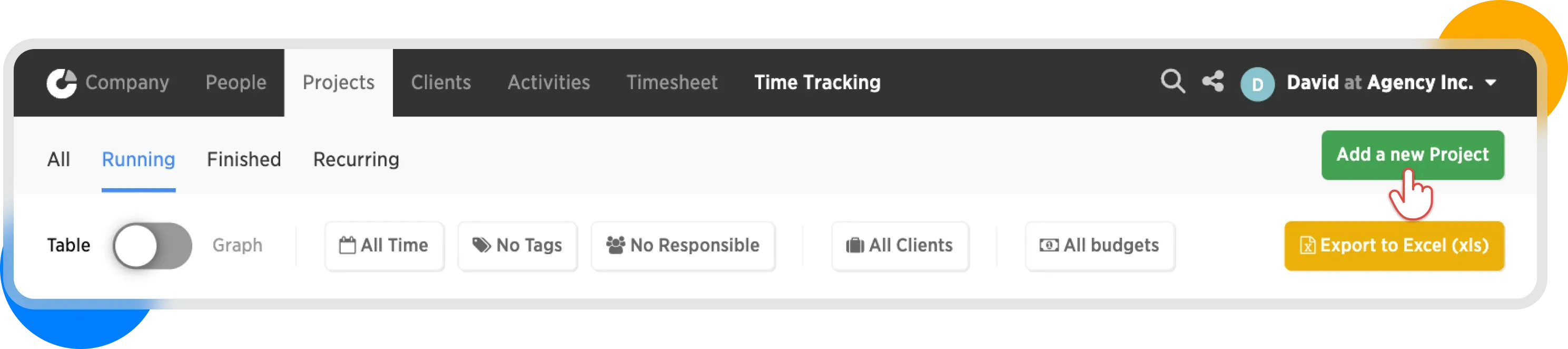
Add a project
2. Select the Project Type
This determines whether it's a one-time project or a recurring project.
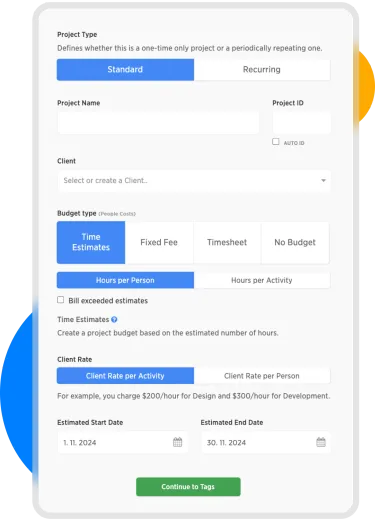
Project form
3. Enter the Project Name
Enter the project name and assign a client.
4. Select the Budget Type
The budget type determines not only the final cost of the project but also how revenue is allocated to employees and activities. It affects nearly all reports generated by Costlocker.
- Time Estimates: The project budget is created based on estimated hours.
- Fixed Price: The project budget is created by entering fixed prices.
- Timesheet: The project budget is created retrospectively based on all hours worked.
- No Budget: Ideal for internal projects.
5. Choose a Start Date
This helps track when the project starts and when it should end.
- Project Start: Before this date, people cannot track time on the project.
- Project End: On this date, the remaining amount is assigned in the project invoicing. More in the article Project Billing.
6. Review the Completed Form
In our example, we're using the Time Estimates budget type:
- Time Estimates: Invoicing based on estimates and predetermined hourly rates; the budget remains the same regardless of hours worked.
- Estimate Per Person: Each person is assigned a number of hours to spend on a specific activity.
- Client Rate by Activity: The same hourly rate for an activity, regardless of who performs it.
Next, click Continue to Tags.
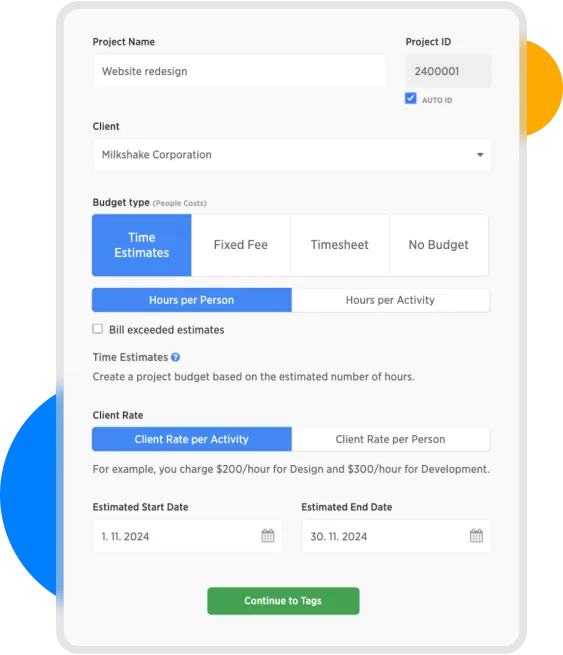
Filled Project information form
7. Skip Tags
We will skip tags at this point. Click Continue to Budget.
8. Fill in the Budget
Available fields for completion always vary depending on the budget type.
What remains consistent is filling in the activity and the person on the left side of the form.
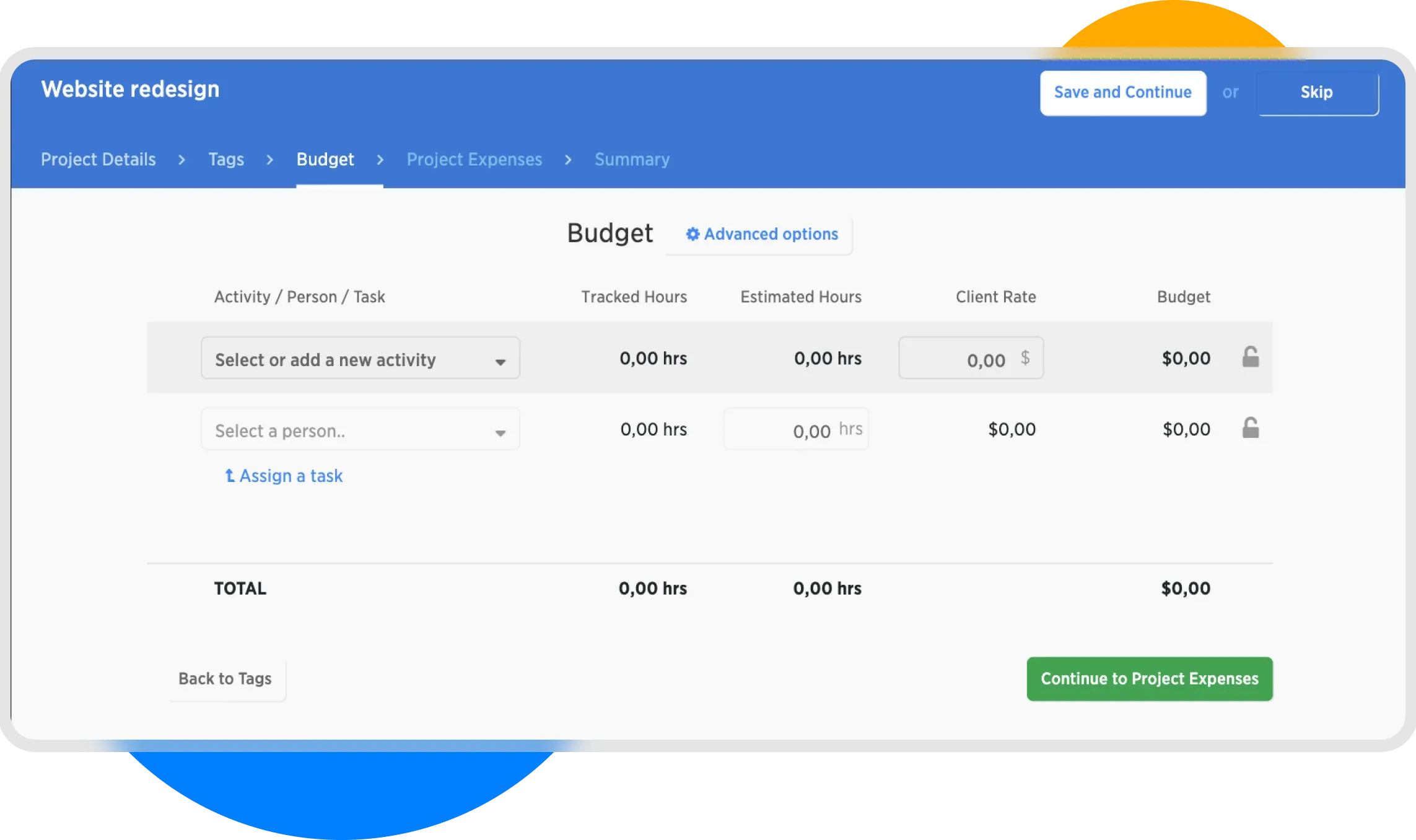
Project Budget Form
Now we will fill in the individual activities for our project.
- We will use the activities created in previous step. (Activities can also be created while setting up the project.)
- In the table, you will see activities, people, the expected number of hours, and the hourly rate.
- For the person, select yourself (e.g., David Maralík) so that you can track your time.
- We chose a zero rate for Account Management to show how non-billable hours are marked.
| Activity | Person | Estimated Hours | Client Rate |
|---|---|---|---|
| Design | Jessica Miller | 10 | $150 |
| Design | <me> | 3 | $150 |
| Development | Arthur Smith | 5 | $180 |
| Development | John Jackson | 15 | $180 |
| Account Management | Margaret Collins | 5 | $0 |
| Account Management | <me> | 3 | $0 |
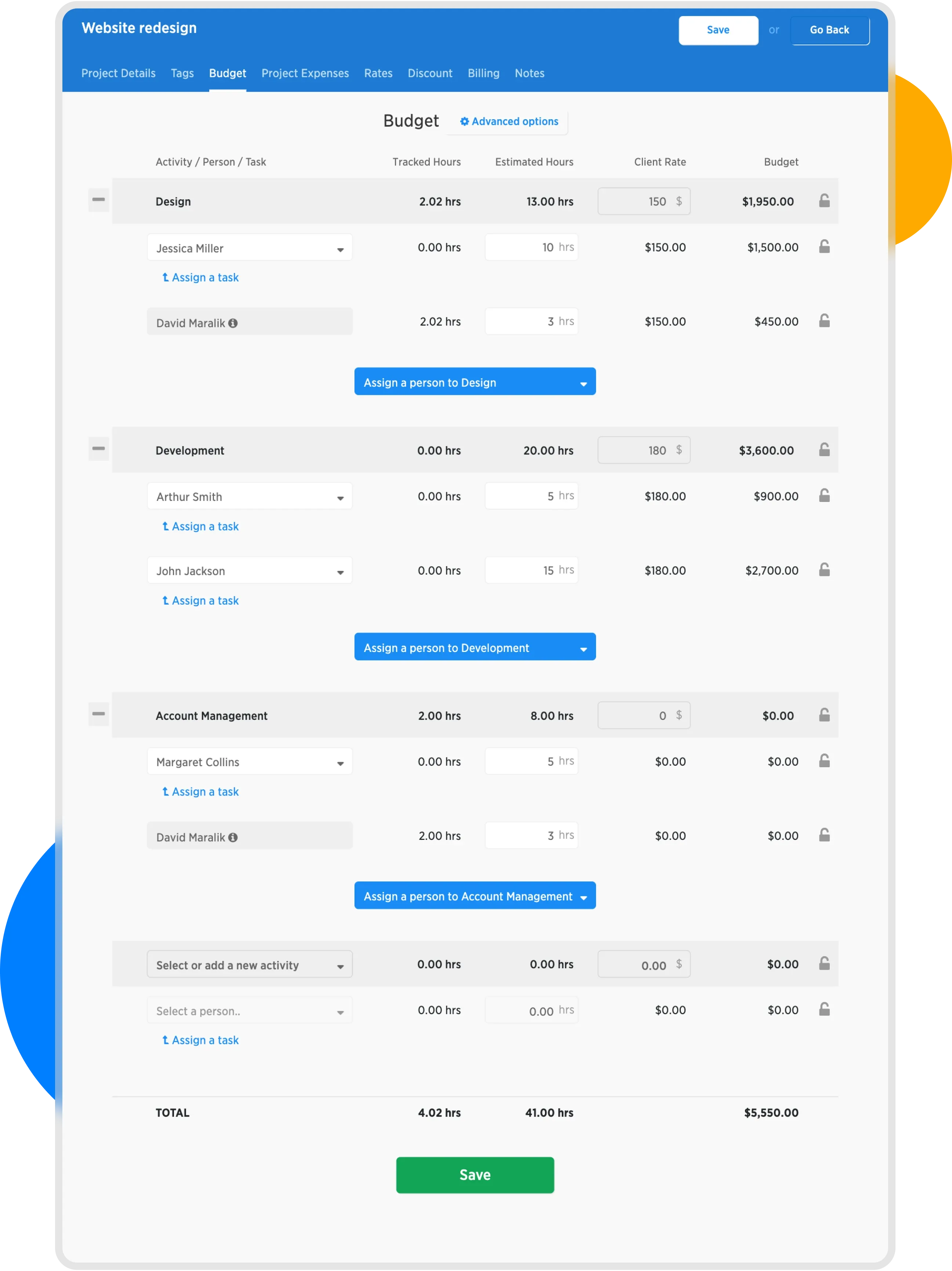
Filled budget form
From the completed budget, we see that a total of 41 hours are to be worked on the project, and we will receive $ 5,550.00 from the client for the work done by the team.
We can move to the next step by clicking Continue to Project Expenses.
9. Fill in Project Expenses
Project expenses track external purchases associated with the project, such as:
- Subcontracting freelancers
- Renting a photo studio
- Purchasing stock images
- Outsourcing part of the project
- Travel expenses related to the project
In our case, we will record the following items.
| Name | Purchase Price | Selling Price (Invoiced) |
|---|---|---|
| Copywriting | $800 | $1200 |
| Traveling costs | $200 | $0 |
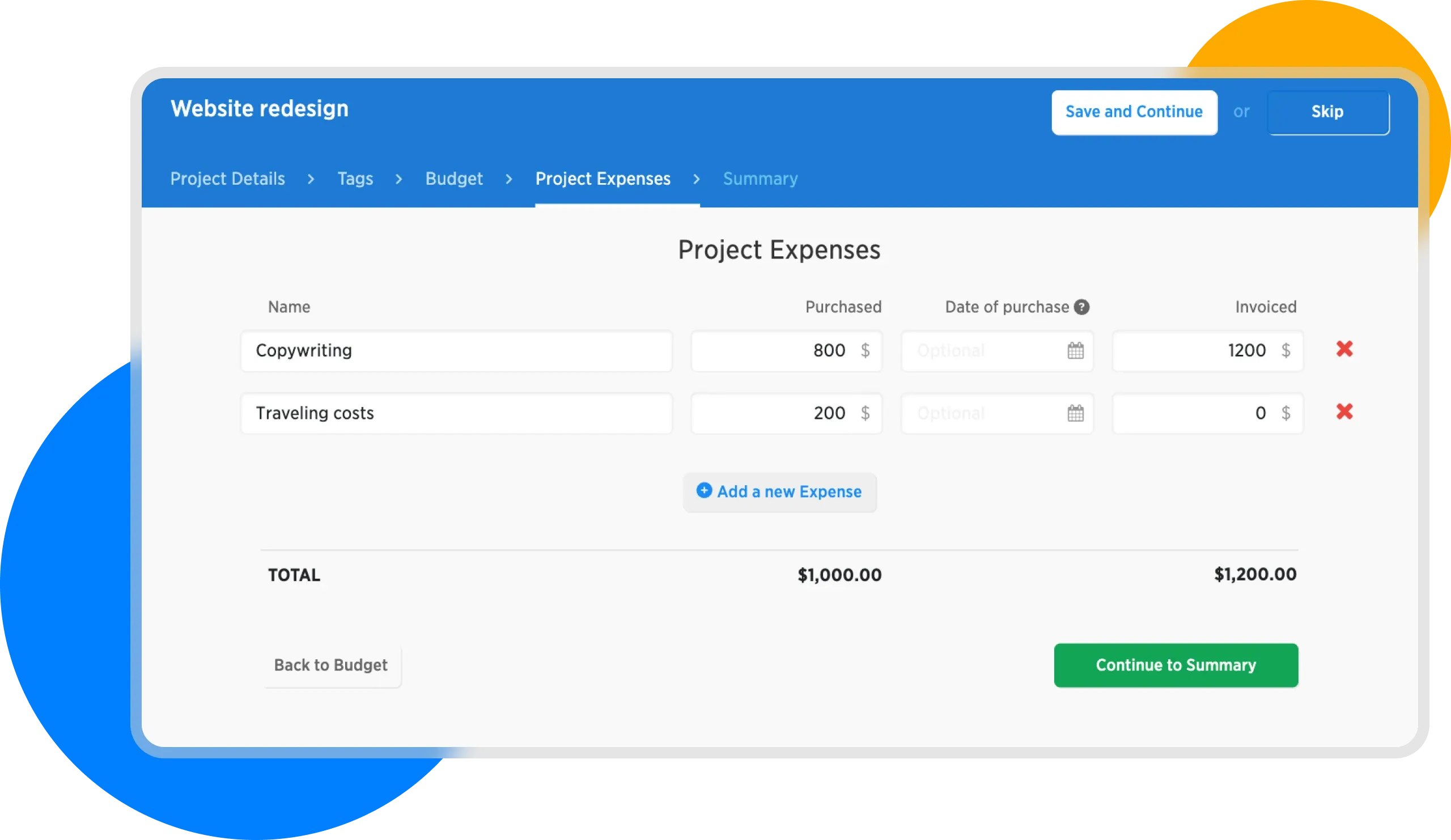
Project Expenses
Here, we see that the total project expenses is $1,000.00 while our revenue will be $1,200.
We can proceed to the final step by clicking Continue to Summary.
10. Project Summary
In this step, we define the responsible people, selected from the roles of Administrator and Manager.
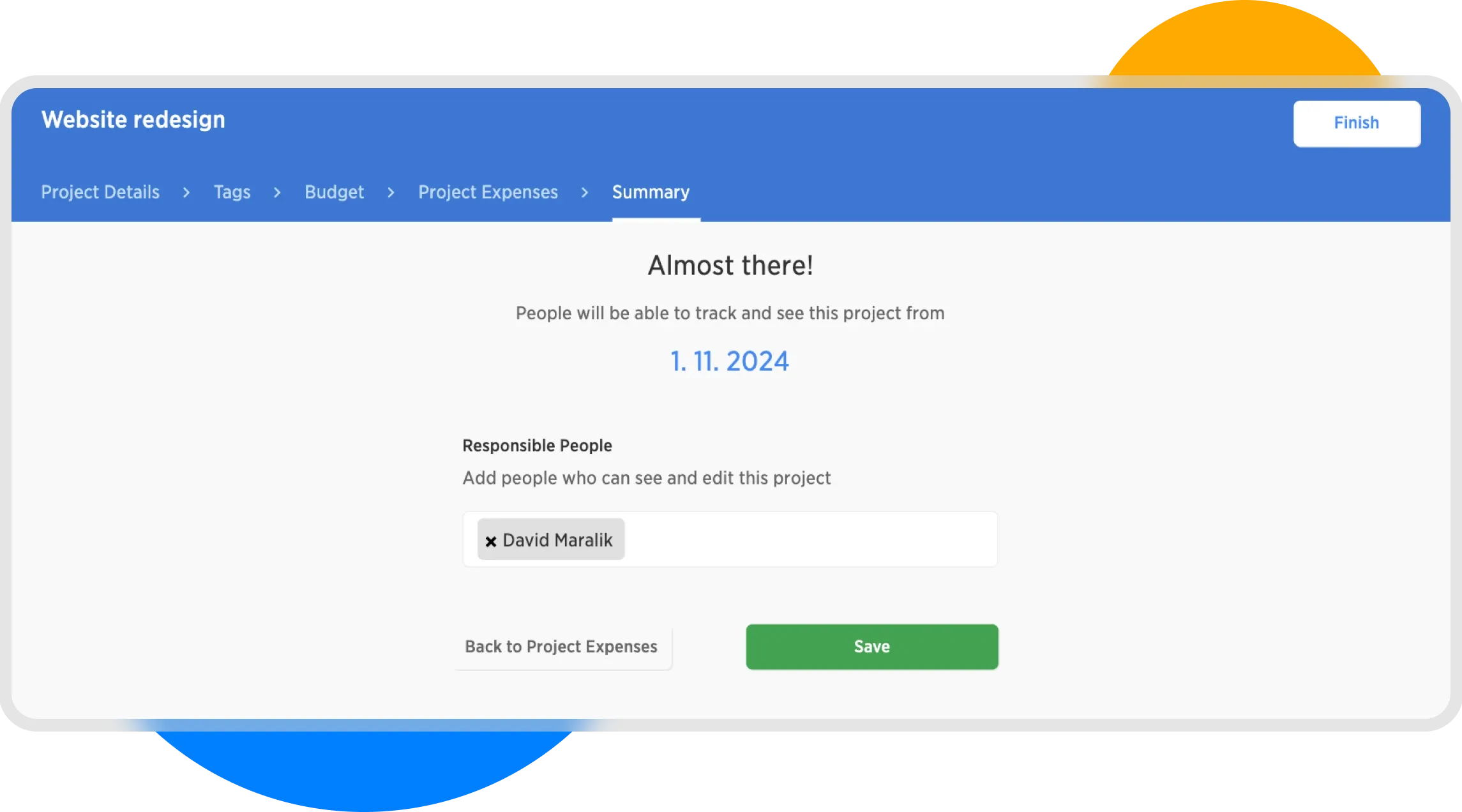
Setting of responsible people
Confirm the settings by clicking Save, and you will be taken to the project details.
Project Created
Congratulations! You've just created your first project.
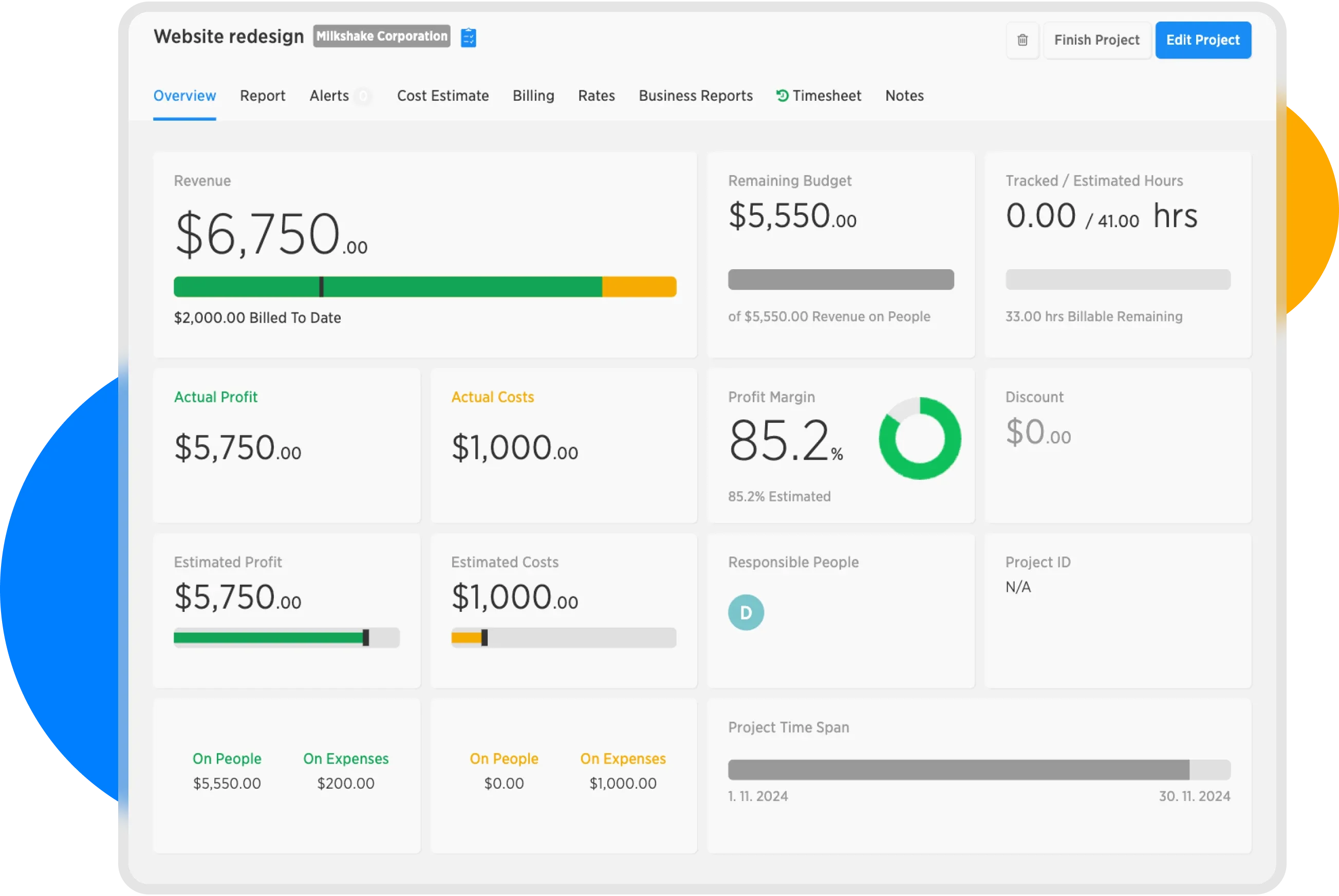
Project detail
In the next step, we will look at time tracking ...